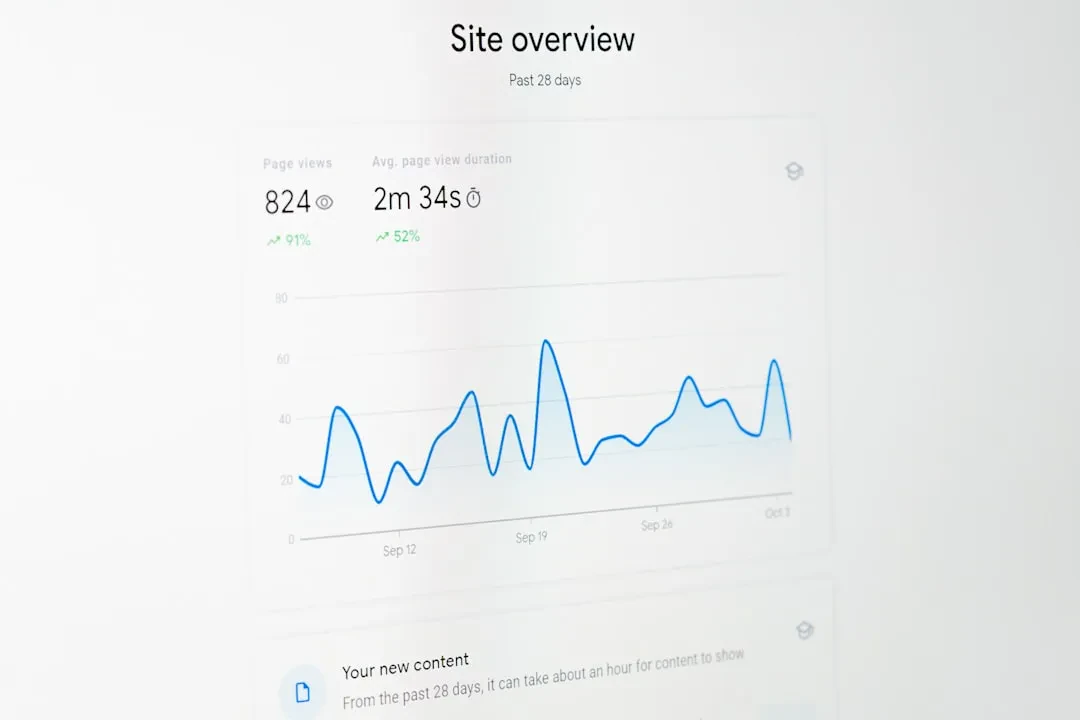
You're looking at the Google Search Console Performance report. Numbers everywhere: impressions, clicks, CTR, average position. But what do they really tell you? If you don't interpret them correctly, you risk making the wrong decisions — optimizing the wrong keyword or wasting time on pages that actually work.
At Meteora Web, we see this every day in projects that come from other developers: data looked at but not understood. One client told us: "I get 10,000 impressions a day, but only 50 clicks. Should I worry?" The answer? It depends. That's why you need a guide that really explains what these metrics mean and how to use them to improve your SEO.
What is the Google Search Console Performance Report
The Performance report is the heart of SEO data in GSC. It shows how your site appears in Google search results: how many times it was seen (impressions), how many times someone clicked (clicks), the percentage of clicks relative to impressions (CTR), and the average position where your pages appeared.
Data covers up to 16 months of history, and you can filter by: query, page, country, device, search type (web, images, video), and time period. The report is divided into two main sections: the trend chart and the data table.
The core metrics
Impressions: number of times a link to your site appeared in search results (even if the user didn't scroll to see it). Google filters out duplicate refreshes.
Clicks: real actions. A user saw your result and clicked to visit the page. Note: clicks on internal links (e.g., sitelinks) are counted separately.
CTR (Click-Through Rate): clicks divided by impressions, multiplied by 100. It tells you how compelling your result is compared to others on the SERP. A high CTR means your title tag and meta description (or rich snippet) are working well.
Average position: weighted average of the positions where your pages appeared. Lower (closer to 1) is better, but careful: it's an average. A page that appears in position 5 for a highly searched query and in position 30 for a rare query will give a misleading average.
Interpreting the data: common mistakes and what to really look at
The most frequent mistake is confusing average position with the actual ranking for each individual query. Average position is a trend indicator, not an exact measure. If your average position moves from 8 to 6, it might be an improvement, but always check the queries with the most impressions to understand the detail.
Another mistake: focusing on CTR without considering query type. An informational query (e.g., "how to") naturally has low CTR because Google often provides direct answers with featured snippets. A commercial query (e.g., "buy running shoes") should have high CTR; otherwise, your result isn't competitive.
We at Meteora Web, when analyzing a site, always start with concrete questions: "Which queries have an average position below 10 and very low CTR?" and "Which pages have many impressions but few clicks?" Those are the priorities.
How to use the report for concrete actions
Filter by country and device
Set the country filter to your main market. If you work in Italy, filter by Italy. Then compare desktop vs mobile data: often average position is better on mobile but CTR is lower due to snippets or ads.
Identify underperforming pages
Go to the "Pages" tab, sort by Impressions descending, then look at CTR. If a page has many impressions but very low CTR (e.g., below 1%), the title tag or meta description are probably not compelling. Try rewriting them.
Real example: we had an e-commerce client with a "Running shoes" page that had 5,000 impressions/month and a 0.8% CTR. After rewriting the title to "Running Shoes for Men and Women: Top Models 2026" and adding a review rich snippet, CTR rose to 3.2%. Impressions dropped slightly (because the query became more specific), but clicks increased by 150%.
Analyze queries with low average position but high CTR
This often happens: a query in position 20-30 with a 5-10% CTR. It means the query is very specific and the user is looking for exactly your content. You could gain a lot by climbing in position. Optimize the page with more targeted content and internal links.
Export data for advanced analysis
The report exports up to 1,000 rows. For larger datasets, use the GSC API or the Google Sheets export tool. We helped a company build an automated dashboard with Looker Studio that updates data daily and shows CTR trends for keyword clusters.
// Example quick filter in GSC: go to Queries, sort by Clicks, then apply filter "Average position less than 10" and "CTR greater than 5%". Those are your best queries.What NOT to do with the Performance report
- Don't look at average position in absolute terms without context. Compare it to the previous period (same queries).
- Don't draw conclusions from small fluctuations. A 0.1% CTR change in one day is noise. Look at 28-day trends.
- Don't ignore zero impressions: if a query has no impressions, you're not indexed or the competition has overtaken you. Investigate.
In summary — what to do now
- Open the GSC Performance report for your domain.
- Apply the main country and mobile device filter.
- Export data for the last 3 months (or use the API).
- Identify the top 10 queries with the most impressions and CTR below your industry average.
- Optimize title and meta description for each.
- Monitor after 2-3 weeks: did CTR improve?
If you don't have a GSC account yet or haven't set up tracking, check Google's official documentation. For deeper data analysis, read our guide on GA4 Events: understanding the right metrics gives you a competitive edge.
Sponsored Protocol